How to Build a CMS Using the Notion API?
Learn how to build a simple content management system by connecting Notion with Jet Admin using the Notion API.
In this guide, we’ll show how to structure your content database, connect it to Jet Admin, and create a CMS interface for managing articles and publishing workflows.

What Is a CMS?
Using Notion as a CMS has several advantages.
Blog management
Documentation portals
Marketing content pages
Knowledge bases
Traditional CMS platforms like WordPress provide built-in tools for content editing and publishing. However, using Notion as a CMS offers a simpler and more flexible workflow for teams already working inside Notion.
Why Use Notion as a Content Database?
Using Notion as the backend for your CMS can simplify content management.
Feature
How it helps
Technical Advantage
Editing
Writers work in a familiar, user-friendly interface.
No training required for non-tech staff.
Structure
Custom properties (tags, dates, authors).
High-quality metadata for your frontend.
API
Seamlessly connects to your website or app.
Real-time updates without manual redeploy.
The Perfect Stack: Notion for Data, Jet Admin for Operations
With Jet Admin, you can:
Build internal CMS dashboards without coding
Display content in tables and forms
Edit records visually
Manage publishing workflows
Create role-based access for editors and admins
This allows teams to manage content from a dedicated admin panel instead of working directly in the database.
How the Architecture Works
A CMS built with Jet Admin and Notion usually follows this structure:
An admin panel built with Jet Admin
Access to a Google calendar
An AI model to understand scheduling requests
Calendar API access
Basic event data (time, date, participants)
Content is stored in Notion, while Jet Admin provides the interface for managing and editing it.
Create a CMS on Jet Admin using Notion API
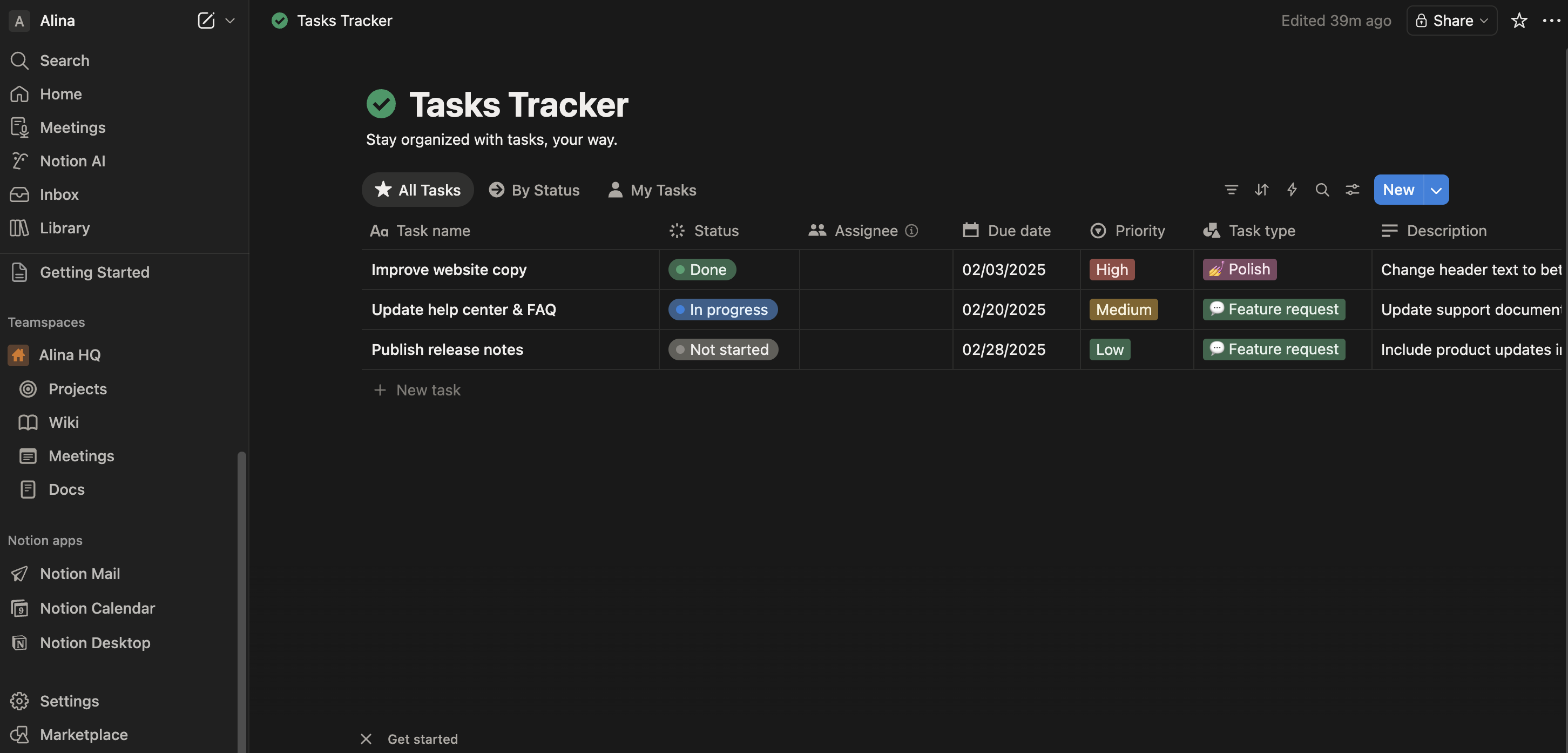
First, create a database in Notion that will store your content.

1. Create a Content Database in Notion
You can create it manually, use a template, or generate it with AI. This database will store all your content records.
2. Connect the Notion API to Jet Admin
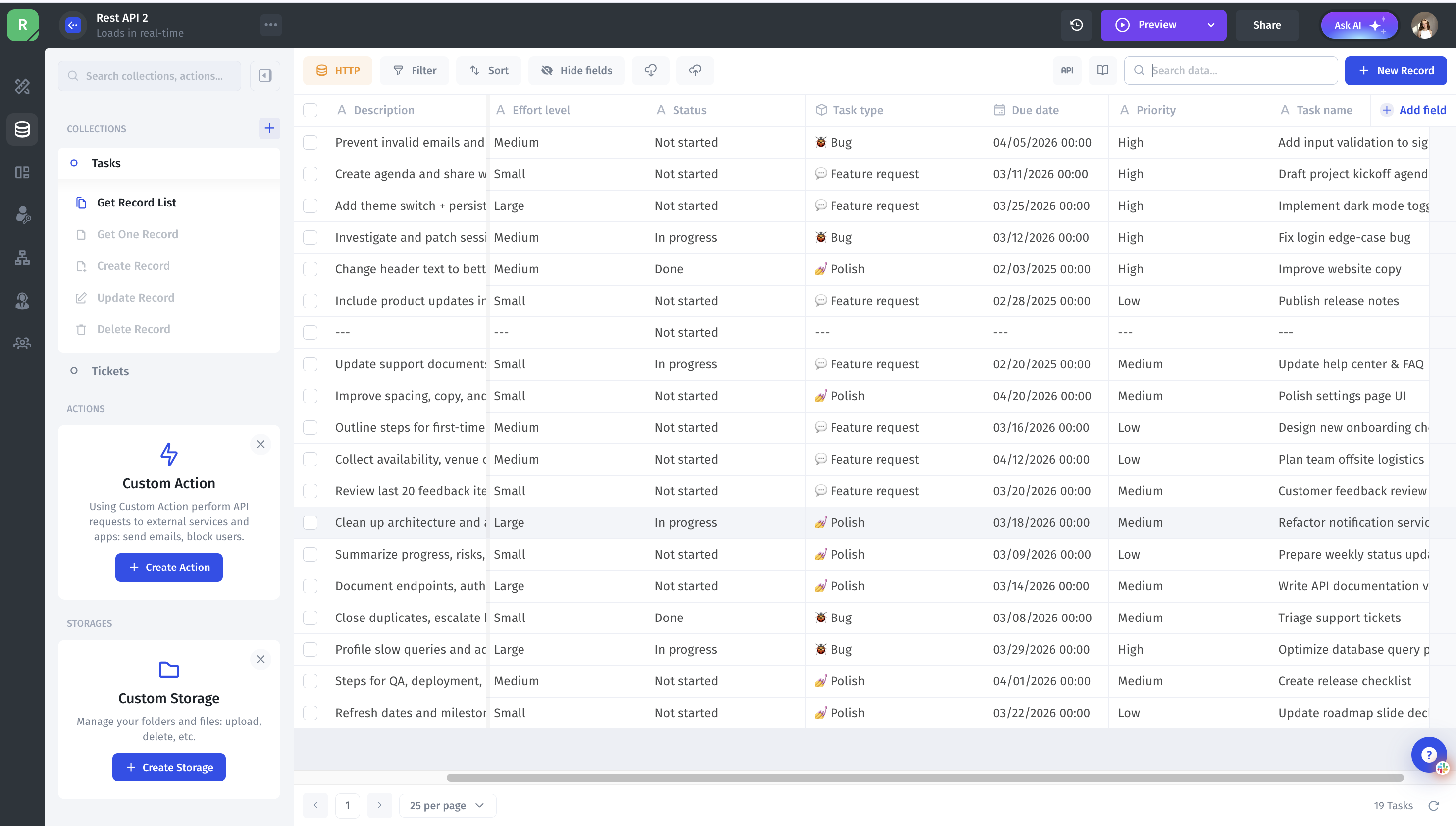
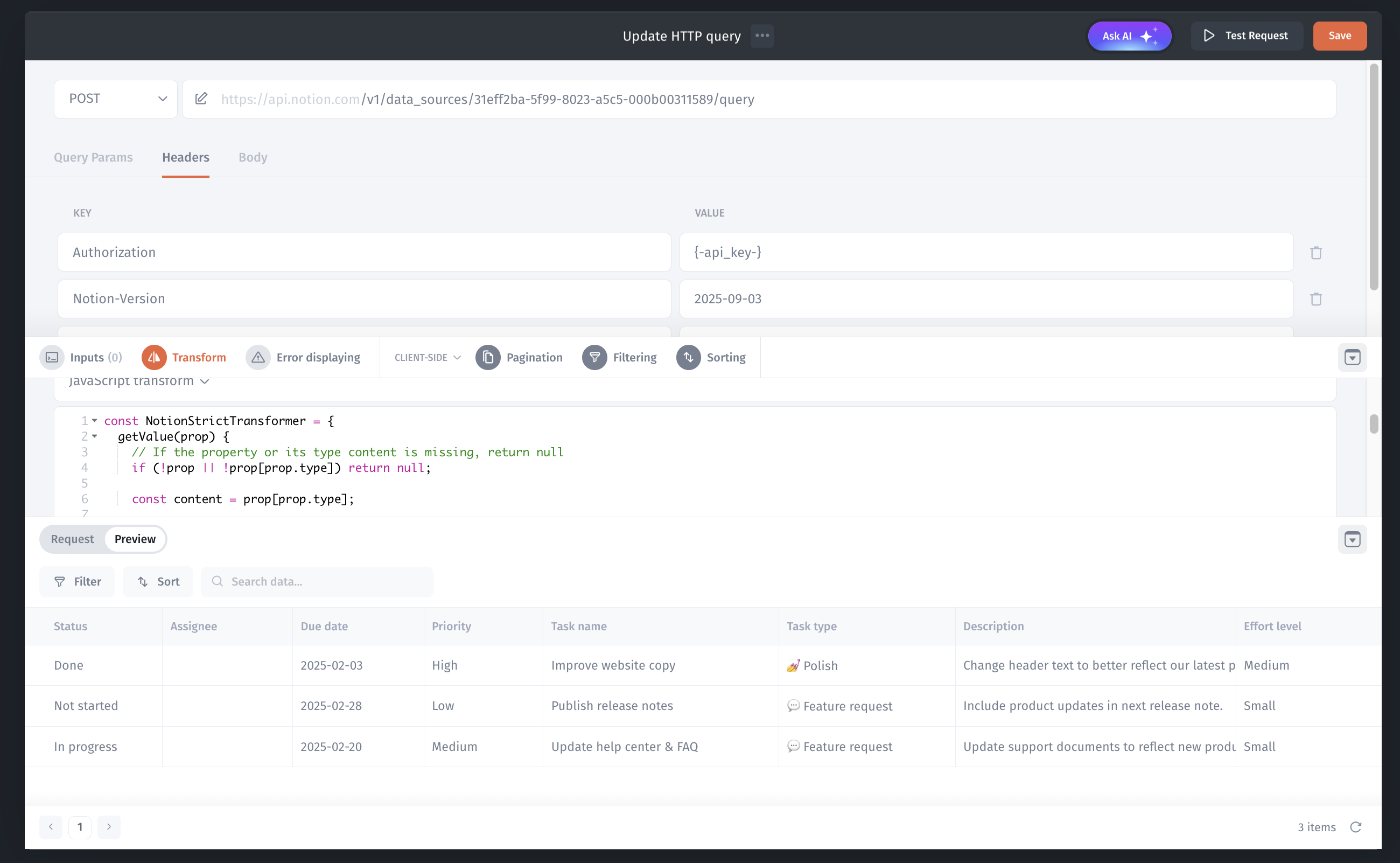
Connect your Notion database to Jet Admin using the Notion API or the REST API integration.
4. Build the CMS Interface in Jet Admin
After connecting the Notion API, create a table dashboard in Jet Admin to display content from your Notion database.
Using the Jet Admin UI builder, you can also create different pages and sections for editing and managing content. For example, add forms for updating articles, changing status, or editing tags. This allows you to organize your CMS interface without writing code.

Conclusion
By combining Notion with Jet Admin, you can build a flexible CMS without developing a custom admin panel.
Notion provides an easy way to structure and store content, while Jet Admin gives your team a powerful interface for managing workflows and publishing content efficiently.