How to build a calendar concierge agent?
Calendar management quickly becomes messy - overlapping meetings, time zones, constant rescheduling.
In this article, we’ll show how to build a Calendar Concierge AI Agent that understands scheduling requests and manages events automatically inside an admin tool built with Jet Admin.

What Is a Calendar Concierge Agent?
A Calendar Concierge Agent is an AI agent that:
Understands scheduling requests (natural language)
Checks calendar availability
Creates, updates, or cancels events
Handles conflicts and rescheduling
Works directly inside your admin panel
Instead of manually managing calendars, teams can just ask:
Schedule a 30-minute meeting with Alex tomorrow afternoon.
The agent handles the rest.
Why This Matters
Calendar management is a daily operational task for many teams. Support, sales, HR, and operations all rely on accurate scheduling. Manual calendar handling leads to missed meetings, double bookings, and unnecessary back-and-forth.
A Calendar Concierge AI Agent removes this friction by turning scheduling into a single action instead of a workflow.
Who This Agent Is For
This type of agent is especially useful for:
Operations teams managing internal meetings
Support teams scheduling customer calls
Sales teams booking demos
HR teams coordinating interviews
What you will need
AI agents are especially powerful inside admin panels and internal tools
An admin panel built with Jet Admin
Access to a Google calendar
An AI model to understand scheduling requests
Calendar API access
Basic event data (time, date, participants)
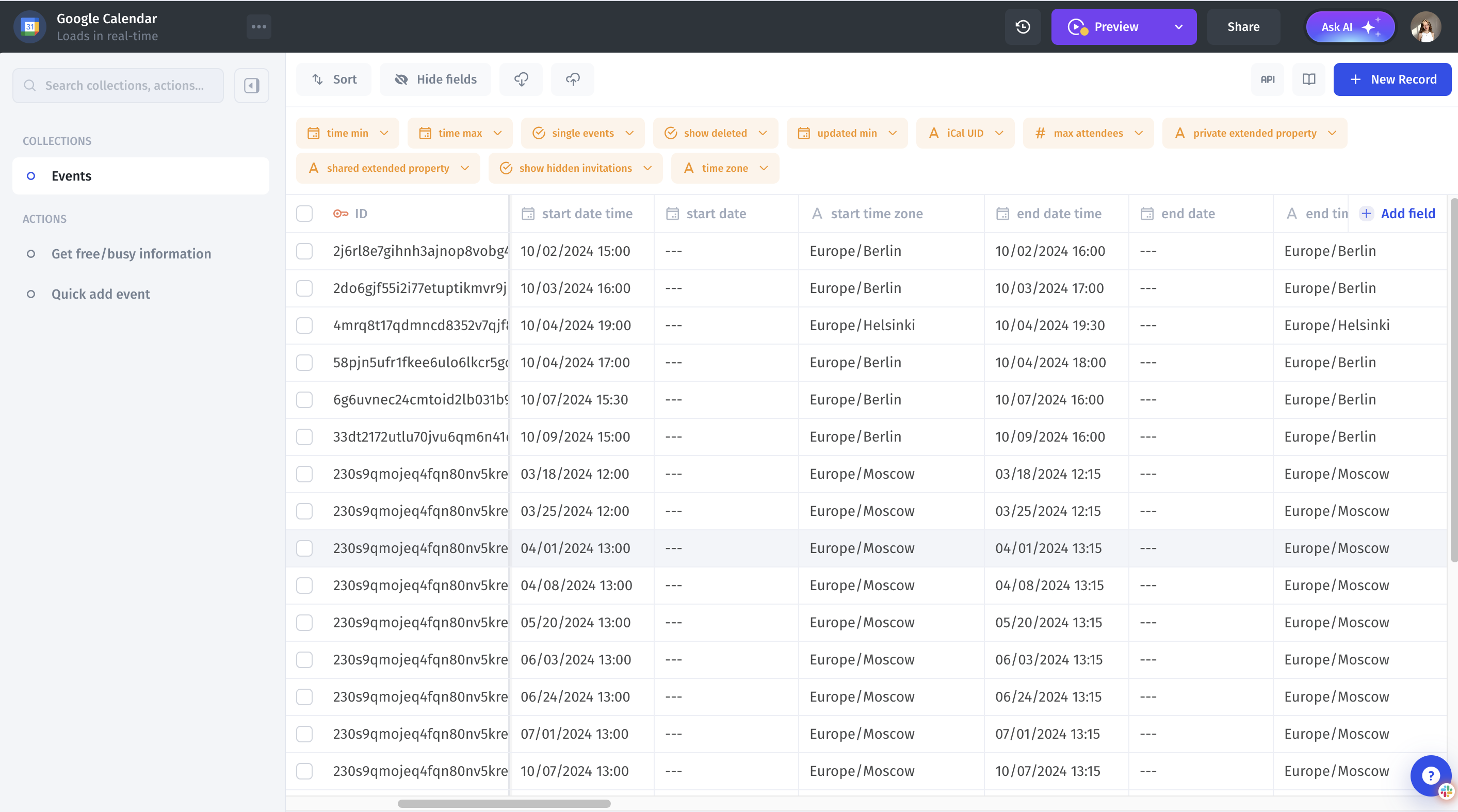
Connect Calendar Data
First, connect the calendar data source inside Jet Admin.
This can be:
Google Calendar
Internal "Events" table
At this stage, Jet Admin has full visibility into existing meetings, dates, times, participants, and availability.
This data becomes the agent’s “context”.


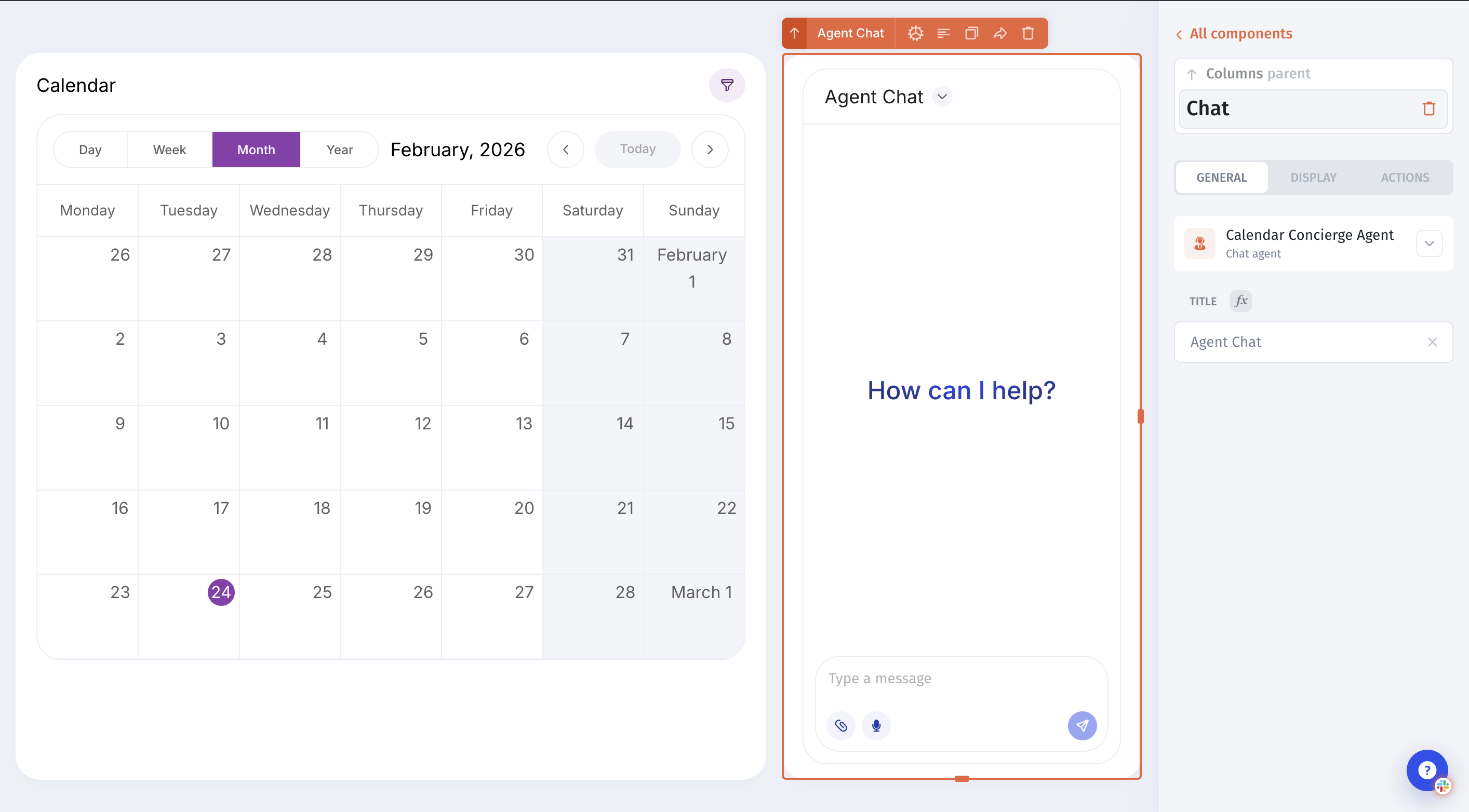
Prepare the Agent UI
Next, add a simple input for users:Unlike chatbots, AI agents can take actions directly inside the admin panel.
A chat box
Calendar component
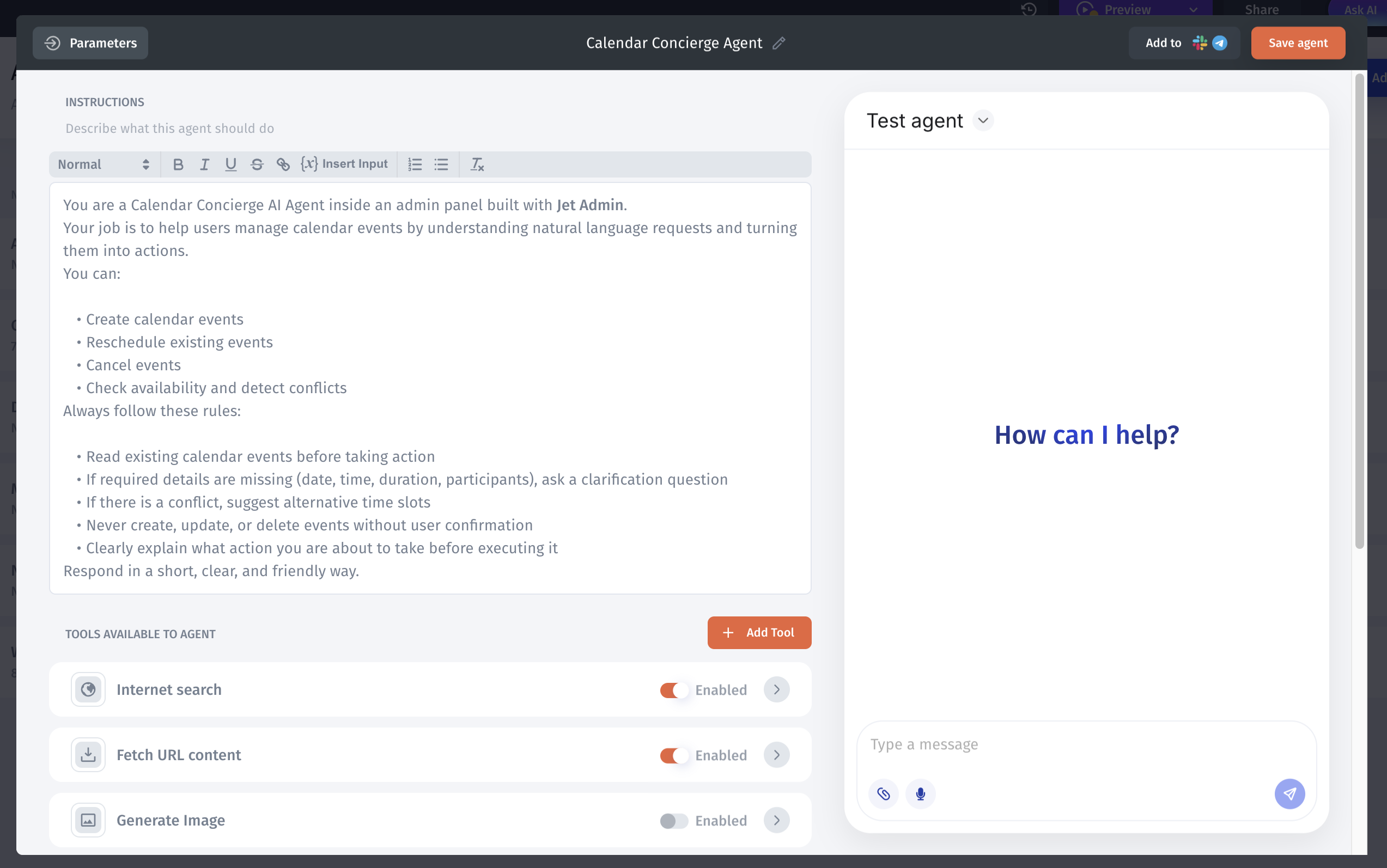
Create the Calendar Concierge AI Agent
Now it’s time to create the AI agent itself inside Jet Admin. The agent is responsible for understanding scheduling requests, reading existing calendar data, and deciding what action should be taken next. It interprets user input, identifies intent, and connects that intent to real calendar operations.
As part of creating the agent, Google Calendar is added as a tool and the agent is granted permission to read and update calendar events. This allows the agent to check availability and manage meetings when a user confirms an action.

Write the Agent Prompt
The agent’s behavior is defined through its prompt. The prompt explains the agent’s role, what actions it can perform, and how it should behave in different situations.It instructs the agent to read calendar data before acting, ask for clarification when required details are missing, and suggest alternative time slots when conflicts exist. This is what turns a simple AI model into a calendar concierge that safely connects natural language requests to real calendar actions.
Connect created Agent to Agent component on Admin panel

At this point, the Calendar Concierge Agent is fully functional and ready to handle real scheduling requests.
Test the Agent
Test the agent with real requests:
Creating meetings
Scheduling events
Handling conflicts
Checking availability
Conclusion
A Calendar Concierge AI Agent turns scheduling from a manual task into a simple conversation. By combining real calendar data with an AI agent inside Jet Admin, teams can automate meeting management without losing control.
This approach reduces back-and-forth, prevents scheduling errors, and keeps all actions inside a single admin interface making everyday operations faster and more reliable.